
Google Find Hub: How to Turn On Notify When Left Behind
Set up per-tracker left-behind alerts in Find Hub 3.1.787, add trusted places, and fix the settings that stop alerts firing.



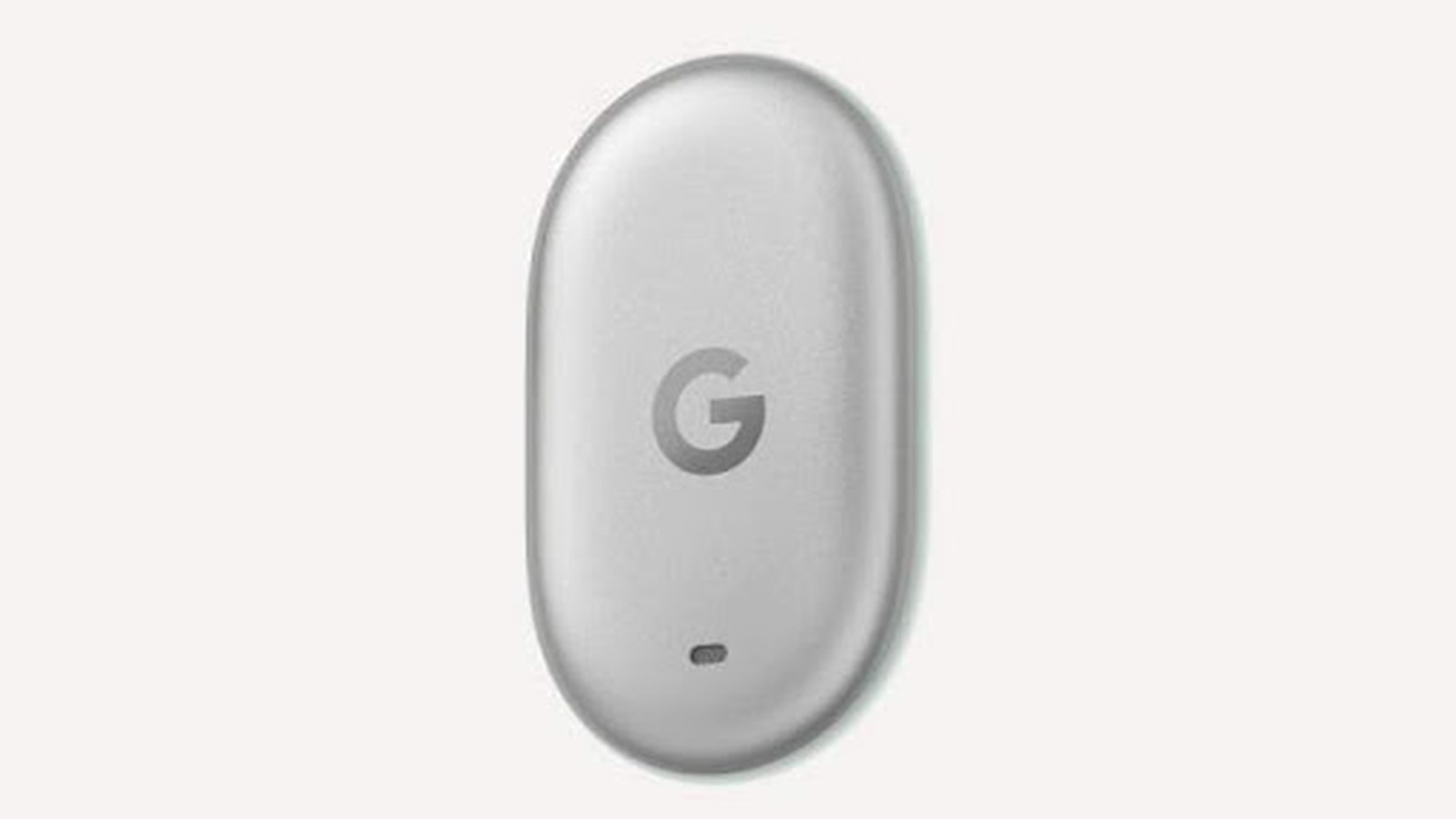
You walk out of a cafe, and your keys stay on the table. Ten minutes later your phone tells you so, with the last place it saw the tracker. That's what the new Notify when left behind option in Google Find Hub does, and setting it up takes about four minutes per tracker.
It needs Find Hub version 3.1.787-06 or newer, a Bluetooth tracker paired to your account, and notification permission for the app. Alerts also stop working while battery saver is on, which is the part most people miss.
Below are the five settings in order, the trackers that support the feature, and the four reasons an alert can fail to arrive.
What Notify when left behind actually does
Find Hub now watches the distance between your phone and each tracker. When you move out of Bluetooth range, the app sends a notification and records the last spot where the tag was still connected.
Two details matter. The alert fires per tracker, so a wallet tag and a bag tag carry separate switches, and Find Hub skips the alert when the item stays at an address that Google already knows as home, which means your keys can sit on the hall table all day without a single buzz.
That home exception is on by default if your Google account has a home address saved. If you'd rather be reminded about the bag you leave by the door every morning, you can remove the exception in step 4.
Before you start
- A phone on Android with Bluetooth and location services enabled.
- A paired tracker. Pixel Tag, Moto Tag and Chipolo tags all work, and so do other trackers that joined the Find Hub network.
- Find Hub version 3.1.787-06 or higher.
- Notification permission for Find Hub, not just for the tracker.
Left-behind alerts are limited to Bluetooth trackers for now. Headphones and other Find Hub devices don't get them yet, and they still show up in the same app.
Step 1: Update Find Hub to 3.1.787-06
The feature shipped in that build, so an older install won't show the toggle at all.
- Open the Play Store and search for Find Hub.
- Open the listing and tap Update. If the button says Open, you're already on a current build.
- Launch the app once after updating so the new settings screen loads.
If the Play Store refuses to update, install the current APK from APKPure instead, because the package name is identical and your trackers stay paired either way, since the pairing data lives in your Google account rather than in the app itself.
Step 2: Turn on Notify when left behind for each tracker
This is the switch itself, and it sits one level down from the tracker list.
- Open Find Hub and tap the tracker you want to cover.
- Tap the gear icon next to the tracker's name.
- Find Notify when left behind and turn the toggle on.
- Go back and repeat for the next tracker.
There's no bulk option. Five tags means five trips through the same screen, which is annoying once and then done, but the upside of a per-item switch is that you can leave one tag alone, for example the one that lives in your car and never leaves it.
Step 3: Give Find Hub permission to post notifications
A toggle that's on, with notifications blocked at the system level, produces silence. Android treats these as two separate permissions.
- Open Settings → Apps → See all apps.
- Tap Find Hub.
- Tap Notifications.
- Turn on All Find Hub notifications, then check that the left-behind channel inside the list isn't muted.
On Samsung phones the path starts at Settings → Apps, and the notification screen looks different but carries the same master toggle. If you've ever swiped a Find Hub alert away and tapped "stop notifications", this is where you undo it.
Step 4: Add or remove trusted places
Find Hub suppresses alerts at places you've marked as safe. Home comes from your Google account address, and you can add more.
- Open the tracker, tap the gear icon, then tap Notify when left behind.
- Tap Add location to mark an office, a gym or a relative's house.
- To get alerts at home, remove the home address from the trusted list on the same screen.
Pick the places where the item is supposed to stay, because a bag that lives by the front door shouldn't be flagged every morning while a laptop bag that travels to work and back every weekday should be.
Step 5: Keep battery saver from silencing the alert
Find Hub reads distance over Bluetooth, and battery saver throttles background scanning. With saver on, the alert often arrives late or not at all.
If you rely on left-behind alerts, add Find Hub to the battery exceptions. On stock Android that's Settings → Apps → Find Hub → Battery → Unrestricted. On Samsung it's Settings → Battery and device care → Battery → Background usage limits, where Find Hub needs to stay out of the sleeping apps list.
Location services need to stay on as well. The alert itself needs Bluetooth, and the map pin needs location, so turning either off breaks half the feature.
Which trackers get left-behind alerts
Any Bluetooth tracker that works with Find Hub can use the feature, including Pixel Tag, Moto Tag and Chipolo's tags. The company shipped it alongside Pixel Tag, which is why the timing looks late next to Apple's Find My and Samsung's SmartThings Find, both of which have offered separation alerts for years.
What you can't do yet is apply the same alert to headphones, earbuds or a laptop. Those devices appear in Find Hub too, but the left-behind switch stays tracker-only as of version 3.1.787, so a pair of earbuds left on a train still won't buzz your phone.
When the alert doesn't fire
No notification at all. Check the two layers from step 3. The per-tracker toggle can be on while the system channel is blocked.
An alert every time you leave home. Your home address is still in the trusted list. Remove it, or add the address as a place you trust and accept the quiet.
Alerts that arrive minutes late. Battery saver, or a phone that aggressively freezes background apps. Set Find Hub to unrestricted and test again on a walk.
The tracker shows as offline. The tag is out of range of every phone in the Find Hub network, not just yours. Left-behind alerts still fire, but the map pin stays frozen at the last contact, and that pin can easily be an hour old by the time you open the app.
Only one of your trackers alerts. That's the missing per-tracker toggle. Each item carries its own switch.

Google’s Find Hub


Google’s Find Hub is a device and location-sharing utility for Android and Wear OS.

What to do when the alert lands
Tap the notification. Find Hub opens on the tracker with the last known location, and from there you can play a sound if you're close, or mark the item as lost so other phones in the network can report it.
The alert is a nudge, not a guarantee. Bluetooth range varies with walls, pockets and the phone in your hand, so treat the map pin as a last-seen marker rather than a live position, and check the timestamp before you turn the car around.
FAQs
- Does Find Hub left-behind work with an AirTag?
- No. AirTags use Apple's Find My network and never appear in Find Hub. You need a tracker built for Google's network, such as Pixel Tag, Moto Tag or a Chipolo tag.
- Can I switch on left-behind alerts for all my trackers at once?
- No. Find Hub stores the setting per tracker, so you turn it on inside each tracker's gear menu. There's no bulk toggle as of version 3.1.787.
- Do the alerts work when my phone is switched off?
- No. The phone does the range check and sends the notification, so a powered-down phone can't warn you about anything.
- Why did I get an alert at home?
- Either your Google account has no home address saved, or the address was removed from the trusted places list. Add it back under Notify when left behind, then Add location.
- Does the feature drain the battery?
- The Bluetooth scanning it relies on already runs for Find Hub, so the alert adds little on its own. Battery saver is the bigger problem, because it blocks the alerts rather than saving power for them.
